

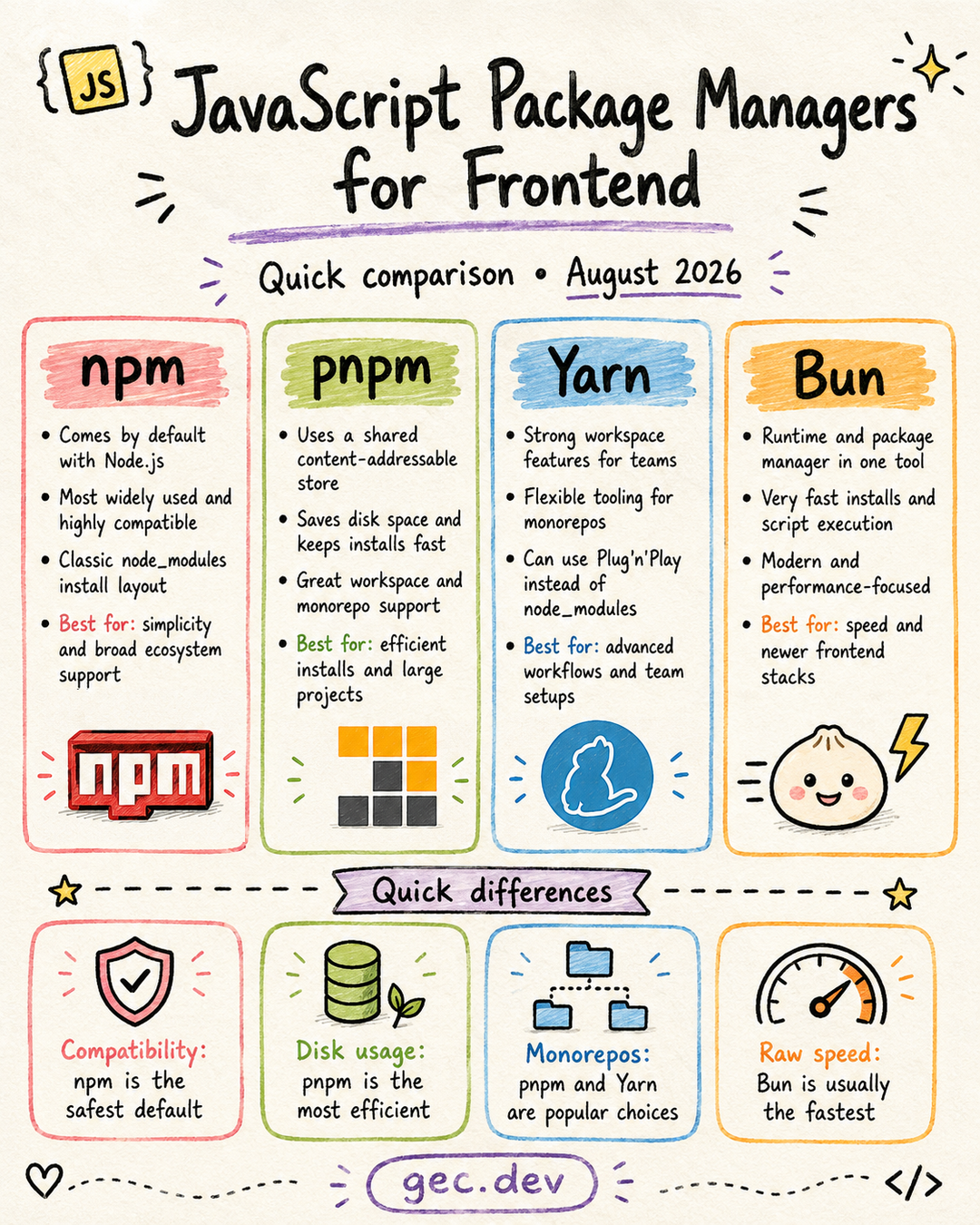
A JavaScript package manager reads the dependencies in package.json, resolves compatible versions, downloads packages, records the result in a lockfile, and makes those packages available to the project. npm, pnpm, Yarn, and Bun all perform that job, but they differ in how they arrange dependencies, reuse downloaded files, support workspaces, and fit into a toolchain.
The best choice is rarely the package manager that wins one benchmark. It is the one whose install model and operational tradeoffs fit the project and its team.
The comparison at a glance
| Package manager | Main advantage | Install model | Lockfile | Good default for |
|---|---|---|---|---|
| npm | Broad compatibility and no extra setup with a typical Node.js installation | Hoisted node_modules |
package-lock.json |
New projects that value familiarity and ecosystem compatibility |
| pnpm | Efficient disk use and strict dependency boundaries | Content-addressable store linked into node_modules |
pnpm-lock.yaml |
Monorepos, many local projects, and teams that want efficient installs |
| Yarn | Advanced workspace tooling and configurable install strategies | Plug'n'Play by default in modern Yarn, or configurable linkers | yarn.lock |
Teams that want strong monorepo controls or Plug'n'Play |
| Bun | Fast package operations integrated with a JavaScript runtime and toolkit | node_modules managed by Bun |
bun.lock |
Newer stacks already adopting the Bun runtime and toolchain |
All four can install packages from the npm registry and run scripts from package.json. The important differences begin after the dependency graph has been resolved.
What happens during an install
The manifest and registry are common inputs. The package manager's storage and linking strategy determines what appears in the project afterward.
flowchart TD
    Manifest[package.json] --> Manager{Package manager}
    Registry[npm-compatible registry] --> Manager
    Manager --> Lock[Write or verify lockfile]
    Manager --> Npm[npm: hoisted node_modules]
    Manager --> Pnpm[pnpm: shared store plus linked node_modules]
    Manager --> Yarn[Yarn: Plug'n'Play loader or configured linker]
    Manager --> Bun[Bun: node_modules plus integrated runtime tooling]
    Lock --> Repeat[Repeatable installs in development and CI]
    Npm --> App[Application and build tools]
    Pnpm --> App
    Yarn --> App
    Bun --> App
The lockfile is part of the project, not disposable cache data. Commit it and use the same package manager in development and continuous integration. That keeps dependency versions and transitive dependency choices consistent across machines.
npm: the compatibility-first default
npm is distributed with standard Node.js installations and is the package manager most developers encounter first. Its conventional node_modules layout is widely understood by frameworks, editors, deployment platforms, and older tooling.
That makes npm a strong default when a project values the least surprising setup. A contributor with Node.js installed can usually clone the repository and run npm install without first installing another package manager.
npm also supports workspaces, deterministic clean installs through npm ci, dependency auditing, package publishing, and the full npm registry ecosystem. Its tradeoff is that a conventional install can duplicate package files across projects and may use more disk space than a shared-store approach.
Choose npm when broad compatibility and contributor familiarity matter more than optimizing every install.
pnpm: efficient installs with stricter boundaries
pnpm stores package files in a content-addressable store. Projects link to files from that shared store instead of keeping an independent physical copy of every package version. Reusing content across projects can reduce disk use and make repeated installs faster.
Its node_modules structure also exposes a project primarily to dependencies it actually declares. That helps reveal ghost dependencies, where application code imports a package that only happens to be present because another dependency installed it.
pnpm has strong workspace support and uses pnpm-workspace.yaml to define workspace packages. It is especially useful when one repository contains applications, libraries, and shared tooling, or when a developer keeps many JavaScript projects on the same machine.
The stricter layout occasionally exposes assumptions in older tools that expect a flat or heavily hoisted node_modules. pnpm provides hoisting and linker configuration for compatibility, but changing those settings should be a deliberate exception rather than the first response to every dependency error.
Choose pnpm when disk efficiency, fast repeated installs, workspaces, and explicit dependency boundaries are priorities.
Yarn: workspace tooling and configurable resolution
Yarn needs a version qualifier because Yarn Classic and modern Yarn have meaningfully different behavior. Modern Yarn uses Plug'n'Play by default for new projects. Plug'n'Play replaces node_modules with a .pnp.cjs loader that maps packages to their cached locations.
This model can produce small install footprints and detect undeclared dependencies precisely. It can also require editor setup or package extensions when a tool relies on undeclared dependencies or assumes that node_modules exists. Modern Yarn can instead use a traditional node_modules linker when Plug'n'Play is not a good fit.
Yarn's workspace features are a major reason to choose it. Workspace protocols, focused installs, constraints, and commands that run across selected workspaces give teams detailed control over large repositories.
Choose Yarn when its workspace governance or Plug'n'Play model solves a concrete team problem. Record the Yarn release through Corepack or the project's package manager metadata so every contributor uses the intended generation and version.
Bun: package management inside a broader toolkit
Bun combines a JavaScript runtime, package manager, test runner, and bundler-oriented toolkit. bun install is designed for fast dependency installation, while bun run can execute project scripts through the same toolchain.
Bun can install packages for projects that still run on Node.js; adopting its package manager does not require rewriting the application for the Bun runtime. The closer the project moves toward Bun-specific runtime or tooling features, however, the more important it becomes to test framework, native module, deployment, and production compatibility.
Bun is attractive for a new project that wants one fast toolchain for installing and running JavaScript. npm, pnpm, and Yarn remain safer choices when a team needs the longest compatibility history or must match an established Node.js production environment exactly.
Choose Bun when install speed and an integrated modern toolkit are valuable, and the team is prepared to validate the complete stack rather than only the package installation step.
Common commands
The concepts are similar even though the command names differ.
| Task | npm | pnpm | Yarn | Bun |
|---|---|---|---|---|
| Install the project | npm install |
pnpm install |
yarn install |
bun install |
| Add a dependency | npm install react |
pnpm add react |
yarn add react |
bun add react |
| Add a development dependency | npm install -D vitest |
pnpm add -D vitest |
yarn add -D vitest |
bun add -D vitest |
| Remove a dependency | npm uninstall react |
pnpm remove react |
yarn remove react |
bun remove react |
Run the test script |
npm run test |
pnpm test |
yarn test |
bun run test |
| Frozen or clean CI install | npm ci |
pnpm install --frozen-lockfile |
yarn install --immutable |
bun install --frozen-lockfile |
Do not mix these commands casually in one repository. Running multiple package managers creates competing lockfiles and can resolve different dependency graphs.
How to choose
Start with the constraint that would hurt most if ignored:
- Choose npm for the simplest compatibility-first default.
- Choose pnpm for efficient storage, strict dependency boundaries, and strong monorepo support.
- Choose Yarn for Plug'n'Play or advanced workspace policies and orchestration.
- Choose Bun for fast installs within a broader Bun-based toolchain.
Existing repositories should usually keep their current package manager unless there is a measured problem. A migration changes the lockfile and can change the resolved dependency tree even when package.json stays the same. That creates review and testing work, so the benefit should be more specific than preference.
Switching package managers safely
When a migration is justified:
- Start from a clean branch with the existing lockfile committed.
- Check the supported Node.js, framework, and deployment versions.
- Remove the old install output, but keep the old lockfile available for review.
- Generate one new lockfile with the chosen package manager.
- Run type checking, tests, builds, and application smoke tests.
- Inspect dependency and license changes, not just source changes.
- Update CI, containers, deployment commands, contributor documentation, and automation.
- Remove the old lockfile only when the migration is accepted.
Pin the package manager and version in package.json so local development and CI agree:
{
  "packageManager": "pnpm@11.9.0"
}
The exact value should match the tool and release the repository has tested.
A practical default
For a small frontend project, npm is the conservative starting point. For a workspace or a machine with many JavaScript projects, pnpm is often the most immediately useful upgrade. Yarn is compelling when its workspace controls or Plug'n'Play are intentional architectural choices. Bun is compelling when the team wants to adopt its wider toolchain and can validate compatibility end to end.
Whichever tool you choose, commit one lockfile, pin the package manager, and use the same install command everywhere. Consistency has a larger effect on reliable builds than the logo on the command.
Comments
0 total